What Internet Speed Do You Need for IPTV? Bandwidth, Latency, Codecs & Multi-Screen Blueprint
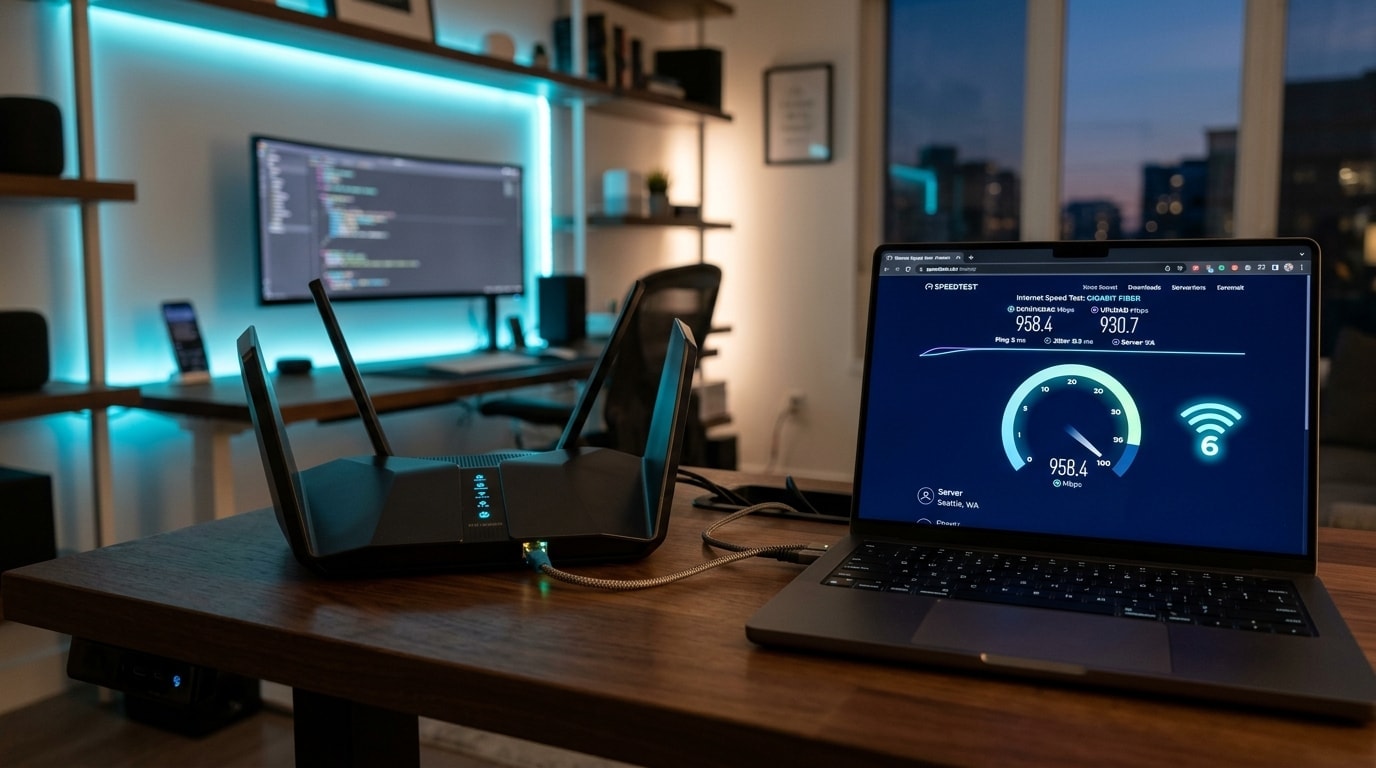
One of the most persistent and frustrating paradoxes in digital entertainment is the subscriber who upgrades to an expensive 500 Mbps or 1 Gigabit fiber connection, sits down in the evening to watch a live football match, and suffers through constant buffering wheels, audio cutouts, and sudden stream drops.
The immediate reaction is confusion: "How can my television buffer when my speed test app reports 800 Mbps download speed?"
The answer lies in a fundamental misunderstanding of network transport layers. When evaluating an internet connection, consumers look almost exclusively at a single numerical metric: download bandwidth (measured in Megabits per second, or Mbps).
However, raw bandwidth is merely the volume capacity of the pipe—it tells you how much data could transfer across your connection during a bulk, non-time-sensitive file download.
Live television streaming is not a bulk file download. It is a continuous, real-time broadcast stream. In live streaming, video packets must travel from broadcast uplink centers across global transit networks and arrive at your streaming device in exact chronological order with microsecond precision.
If your connection suffers from elevated latency (ping), erratic packet arrival intervals (jitter), packet loss, router bufferbloat, or internet service provider (ISP) peering congestion, your stream will freeze—even if your speed test displays 1,000 Mbps.
Understanding what internet speed you actually need for IPTV requires looking beyond the marketing headline numbers on your broadband bill.
This technical blueprint breaks down the genuine bandwidth demands of modern SD, HD, Full HD 60 FPS, and 4K streams, explains the "Household Headroom Formula" for multi-screen streaming, dissects the hidden network anomalies that cause playback freezes, and provides actionable engineering steps to optimize your home network for zero-buffering performance with services like OREXETV.
Experience OREXETV
Upgrade your streaming with high-performance, anti-freeze 10.0 infrastructure. Over 50,000 live channels, 4K 60FPS sports, and 200,000+ VODs.
Quick Summary: Real-World Speed Benchmarks for IPTV
Before analyzing advanced networking layers, review this quick-reference matrix of minimum bandwidth requirements across modern resolution and frame-rate tiers:
+-----------------------------------------------------------------------------------+
|                     REAL-WORLD STREAMING BANDWIDTH REQUIREMENTS                   |
+-----------------------------------------------------------------------------------+
| Video Quality & Resolution   | Target Frame Rate | Minimum Clean Speed Needed     |
+------------------------------+-------------------+--------------------------------+
| Standard Definition (SD)     | 25 / 30 FPS       | 5.0 Mbps downstream per stream |
| High Definition (720p)       | 50 / 60 FPS       | 10.0 Mbps downstream           |
| Full HD (1080p Standard)     | 25 / 30 FPS       | 15.0 Mbps downstream           |
| Full HD Sports (1080p VIP)   | 50 / 60 FPS       | 25.0 Mbps downstream           |
| True 4K Ultra HD (2160p HDR) | 50 / 60 FPS       | 35.0 – 50.0 Mbps downstream    |
+-----------------------------------------------------------------------------------+
Notice the critical distinction between the actual stream bitrate (the volume of data the video stream consumes per second) and the recommended internet connection speed (the downstream bandwidth your home network must provide).
While a high-bitrate 1080p 60 FPS sports stream encoded in modern H.265 consumes approximately 8 to 14 Mbps of raw data, your connection requires a minimum of 25 Mbps of clean headroom to absorb transient network jitter, TCP acknowledgment overhead, and local Wi-Fi contention without interrupting playback.
Bandwidth vs. Latency vs. Jitter vs. Packet Loss: The Four Pillars of Network Health
To diagnose why live television buffers, you must evaluate the four foundational metrics of internet health:
+-----------------------------------------------------------------------------------+
|                        THE 4 PILLARS OF NETWORK STREAMING HEALTH                  |
+-----------------------------------------------------------------------------------+
| 1. Bandwidth (Mbps)   | Pipe Width: Total simultaneous throughput capacity        |
| 2. Latency / Ping (ms)| Delay: Round-trip transit time to streaming CDN server    |
|                       | (Benchmark: Under 35ms for instant zapping)               |
| 3. Jitter (ms)        | Variance: Fluctuations in packet delivery intervals       |
|                       | (Benchmark: Under 5ms; spikes trigger player starvation)  |
| 4. Packet Loss (%)    | Integrity: Percentage of data packets destroyed in transit|
|                       | (Benchmark: 0.0%; any loss > 0.5% causes frame drops)     |
+-----------------------------------------------------------------------------------+
1. Bandwidth (Download Speed - Mbps)
Bandwidth represents volume capacity. Imagine a multi-lane highway. A 50 Mbps connection is a two-lane road; a 1,000 Mbps fiber line is a sixteen-lane highway.
If you are driving a single vehicle (one 1080p sports stream consuming 12 Mbps), the vehicle travels at the exact same speed on the two-lane road as it does on the sixteen-lane highway. Excess bandwidth is valuable primarily when multiple household devices compete for network access simultaneously.
2. Latency (Ping - ms)
Latency is the physical time (in milliseconds) required for a digital packet to travel from your streaming hardware (e.g., an Amazon Firestick or Apple TV), navigate your home router, pass through regional Internet Exchange Points (IXPs), reach the IPTV broadcast server, and return.
- Under 20ms: Exceptional connection. Stream initialization and channel switching occur instantaneously.
- 20ms to 50ms: Standard broadband latency. Fluid streaming with sub-2-second channel switches.
- 70ms to 120ms: Marginal latency. Channel loading incurs observable delays, and streams struggle to recover from momentary packet bursts.
- 150ms+: Unacceptable for live sports. Severe stream handshake delays, persistent buffer stalls, and connection timeouts.
3. Jitter (Variance in Latency - ms)
Jitter measures the stability of your ping over time. If packets leave the broadcast server at perfectly steady 20ms intervals, but arrive at your device intermittently—one packet arriving in 15ms, the next in 120ms, and the next in 10ms—your media player cannot maintain a continuous playback pipeline.
Live streaming decoders maintain a small buffer of video frames. When jitter causes packets to arrive late, the buffer empties before new data arrives. The player freezes, stalls, and drops audio frames. For broadcast stability on Orexetv streams, your connection jitter must remain under 5 milliseconds.
4. Packet Loss (%)
Packet loss occurs when network routers drop data packets entirely due to regional queue saturation, wireless radio interference, or degrading copper lines.
On on-demand streaming platforms like Netflix or YouTube, video players buffer 30 to 60 seconds of video in advance. If a packet is lost, the player has ample time to issue a TCP retransmission request silently in the background.
Live broadcast television operates with low-latency real-time buffers (often just 1 to 3 seconds). If packet loss exceeds 0.5%, the media player cannot re-request missing packets before the playback position arrives. The hardware decoder halts, causing macroblocking, pixel tearing, audio chirps, or a black screen. (If you experience sound continuing while the screen goes dark, consult our comprehensive guide on how to fix IPTV black screen with audio).
Detailed Resolution Breakdown: What Each Quality Tier Demands
Understanding your bandwidth requirements requires analyzing the exact technical specifications of each broadcast resolution tier:
+-----------------------------------------------------------------------------------+
|                        RESOLUTION TIER TECHNICAL SPECIFICATIONS                   |
+-----------------------------------------------------------------------------------+
| Quality Tier | Native Pixels | Frame Rate | Codec | Stream Bitrate | Min Headroom |
+--------------+---------------+------------+-------+----------------+--------------+
| SD (480p)    | 720 x 480     | 25/30 FPS  | H.264 | 1.5 - 3.0 Mbps | 5.0 Mbps     |
| HD (720p)    | 1280 x 720    | 50/60 FPS  | H.264 | 4.0 - 7.0 Mbps | 10.0 Mbps    |
| FHD (1080p)  | 1920 x 1080   | 25/30 FPS  | H.264 | 6.0 - 9.0 Mbps | 15.0 Mbps    |
| FHD Sports   | 1920 x 1080   | 50/60 FPS  | H.265 | 8.0 - 14.0 Mbps| 25.0 Mbps    |
| 4K UHD HDR   | 3840 x 2160   | 50/60 FPS  | HEVC  | 18.0 - 32 Mbps | 40 - 50 Mbps |
+-----------------------------------------------------------------------------------+
1. Standard Definition (SD - 480p / 576p)
- Target Resolution: 720x480 (NTSC) or 720x576 (PAL)
- Target Frame Rate: 25 or 30 FPS
- Raw Stream Bitrate: 1.5 – 3.0 Mbps
- Minimum Downstream Bandwidth: 5 Mbps
- Typical Codec: H.264 / AVC
SD channels represent legacy standard-definition broadcasts, international regional networks, and vintage archival channels. Because their data footprint is minimal, SD streams operate dependably on basic ADSL copper broadband, rural mobile hotspots, or low-tier satellite internet.
2. High Definition (720p HD)
- Target Resolution: 1280x720 pixels
- Target Frame Rate: 50 or 60 FPS
- Raw Stream Bitrate: 4.0 – 7.0 Mbps
- Minimum Downstream Bandwidth: 10 Mbps
- Typical Codec: H.264 or H.265 (HEVC)
720p remains an industry broadcast standard for live sports networks (such as ESPN and FOX in the United States) because transmitting at 720p enables native 60 FPS motion fluidity with low encoding latency. A clean 10 Mbps connection easily handles 720p feeds.
3. Full HD (1080p Standard - 30 FPS)
- Target Resolution: 1920x1080 pixels
- Target Frame Rate: 25 or 30 FPS
- Raw Stream Bitrate: 6.0 – 9.0 Mbps
- Minimum Downstream Bandwidth: 15 Mbps
- Typical Codec: H.264 / H.265
Standard 1080p broadcasts are ideal for scripted drama, sitcoms, news channels, and documentaries where rapid camera movement is limited. A downstream connection of 15 Mbps guarantees uninterrupted playback.
4. Full HD High-Frame-Rate Sports (1080p VIP - 60 FPS)
- Target Resolution: 1920x1080 pixels
- Target Frame Rate: 50.00 or 59.94 / 60.00 FPS
- Raw Stream Bitrate: 8.0 – 14.0 Mbps
- Minimum Downstream Bandwidth: 25 Mbps
- Typical Codec: H.265 / HEVC
This is the flagship standard for modern live sports streaming across premium services. Football, basketball, motorsports, and combat sports demand 60 frames per second to eliminate motion judder and ball ghosting.
Because high-bitrate 60 FPS feeds transmit twice as many video frames per second as standard broadcasts, you must maintain at least 25 Mbps of dedicated downstream bandwidth to avoid buffer starvation. For optimal player setup, read our guide on the best IPTV sports setup for 4K and 60 FPS.
5. True 4K Ultra HD (2160p UHD - 60 FPS)
- Target Resolution: 3840x2160 pixels (Over 8.29 million pixels per frame)
- Target Frame Rate: 50.00 or 60.00 FPS
- Raw Stream Bitrate: 18.0 – 32.0 Mbps
- Minimum Downstream Bandwidth: 40.0 – 50.0 Mbps
- Typical Codec: 10-bit H.265 (HEVC Main 10) / AV1 with HDR10 or Dolby Vision
True 4K broadcasting is a massive data pipeline. Every single second of video transmits between 2.5 and 4 megabytes of compressed data into your streaming hardware. To stream authentic 4K sports and cinema without buffering, your internet connection must provide at least 40 to 50 Mbps of clean, low-jitter downstream bandwidth.
The "Household Headroom Formula" for Multi-Device Streaming
Many households stream television across multiple screens at the same time: one family member watches live football in the living room, another watches a drama in the bedroom, while a third streams programming on a tablet.
Simultaneously, other household devices consume bandwidth in the background: smartphones downloading cloud backups, gaming consoles downloading game updates, and laptops running video conference calls.
+-----------------------------------------------------------------------------------+
|                        THE HOUSEHOLD HEADROOM FORMULA                             |
+-----------------------------------------------------------------------------------+
|  Total Bandwidth Needed = (Sum of Active Video Stream Bitrates)                   |
|                         + (Concurrent Household Activity: Gaming / Browsing)      |
|                         + (30% Network Stability Safety Margin)                   |
+-----------------------------------------------------------------------------------+
Scenario 1: Single Viewer (Living Alone / 1 Active Screen)
- 1x 4K UHD 60 FPS Sports Stream: ~25 Mbps raw
- Smartphone background syncing & web browsing: ~10 Mbps
- Safety Buffer Overhead (30%): ~10 Mbps
- Recommended Minimum Internet Tier: 50 – 100 Mbps
Scenario 2: Two Viewers (Couple / 2 Active Screens)
- Screen 1: 1080p 60 FPS Sports in Living Room: ~15 Mbps raw
- Screen 2: 1080p Movie in Bedroom: ~10 Mbps raw
- General household internet use: ~15 Mbps
- Safety Buffer Overhead (30%): ~15 Mbps
- Recommended Minimum Internet Tier: 100 – 150 Mbps
Scenario 3: Busy Family Household (3+ Active Screens)
- Screen 1 (Living Room): True 4K Sports Stream: ~30 Mbps raw
- Screen 2 (Bedroom): 1080p Entertainment: ~12 Mbps raw
- Screen 3 (Kids Room): 720p Cartoons: ~8 Mbps raw
- Online multiplayer gaming (PS5/Xbox): ~20 Mbps
- Background downloads and smart home cameras: ~20 Mbps
- Safety Buffer Overhead (30%): ~30 Mbps
- Recommended Minimum Internet Tier: 200 – 300+ Mbps
If you plan to run multiple screens simultaneously, ensure your IPTV subscription plan supports multi-room connections. OREXETV offers flexible multi-device plans that allow your family to stream concurrently without account conflicts.
The Wi-Fi vs. Ethernet Battle for Television Streaming
If there is one single operational rule that eliminates 80% of all IPTV buffering complaints worldwide, it is this: connect your streaming television hardware to your home router with a physical Cat6 Ethernet cable whenever physically possible.
+-----------------------------------------------------------------------------------+
|                       WI-FI vs. WIRED ETHERNET FOR IPTV                           |
+-----------------------------------------------------------------------------------+
| Feature                    | 2.4 GHz Wi-Fi  | 5.0 GHz Wi-Fi  | Cat6 Wired Ethernet|
+----------------------------+----------------+----------------+--------------------+
| Maximum Real-World Speed   | 30 – 60 Mbps   | 200 – 500 Mbps | 1,000 Mbps (Gigabit)|
| Resistance to Interference | Extremely Poor | Moderate       | Completely Immune  |
| Packet Loss Probability    | High (1% – 5%) | Low (0.2% – 1%)| ZERO (0.00%)       |
| Average Network Jitter     | 15ms – 80ms    | 3ms – 12ms     | Under 1 millisecond|
| Wall & Obstacle Penetration| Good           | Poor           | Physical cable run |
| Stream Buffering Risk      | HIGH           | MODERATE       | LOWEST POSSIBLE    |
+-----------------------------------------------------------------------------------+
Why 2.4 GHz Wi-Fi is Fatal for Live Television
The 2.4 GHz wireless frequency band was established in the late 1990s. Today, it is overwhelmingly saturated:
- It contains only three non-overlapping channels (1, 6, and 11).
- In suburban neighborhoods and apartment buildings, dozens of routers compete for the exact same radio spectrum.
- Common household electronics—Bluetooth headphones, baby monitors, cordless phones, and microwave ovens—operate on 2.4 GHz. Every time a microwave powers on, it emits radio frequency interference that obliterates 2.4 GHz Wi-Fi packets.
When wireless interference causes a packet drop, your streaming device’s Wi-Fi chip halts video decoding while negotiating retransmissions. The result is a frozen screen during the most critical moments of a match.
The 5.0 GHz Wi-Fi Protocol
If running a physical Ethernet cable through your home is not feasible:
- Ensure your streaming stick (such as a Firestick or Apple TV) is connected exclusively to your router’s 5.0 GHz Wi-Fi SSID.
- The 5.0 GHz band features dozens of wide, non-overlapping channels that are largely immune to household electronic interference.
- However, 5.0 GHz radio waves have shorter wavelengths, meaning they degrade rapidly when penetrating concrete walls, brickwork, and plaster.
Ensure your router is positioned in direct line-of-sight with your television, or install a modern Wi-Fi 6 mesh network node directly near your entertainment console. To optimize streaming sticks on wireless networks, review our Amazon Firestick setup blueprint.
The Power of Wired Ethernet and MoCA Adapters
A physical Ethernet connection is completely impervious to radio frequency interference, wall density, and channel congestion. Data packets travel across copper twisted-pair cables at near light-speed with 0.0% packet loss and sub-millisecond jitter.
If your home has existing coaxial cable outlets (used for legacy cable TV), you can install MoCA 2.5 (Multimedia over Coax) adapters to transform existing coaxial wall jacks into full Gigabit Ethernet ports in every room without drilling new holes in your walls.
The Four Invisible Villains of Internet Streaming
If your bandwidth is high and you are connected via Ethernet, what else can cause live television to buffer? Look for these four hidden network culprits:
+-----------------------------------------------------------------------------------+
|                         THE 4 INVISIBLE STREAMING VILLAINS                        |
+-----------------------------------------------------------------------------------+
| 1. Bufferbloat            | Home router queues delay real-time video packets       |
| 2. ISP Peering Bottlenecks| Congested routes between your ISP and media datacenters|
| 3. Deep Packet Inspection | ISP actively throttles video streams during live sports|
| 4. Outdated Router Hardware| Low-RAM consumer routers overheat and drop TCP sockets |
+-----------------------------------------------------------------------------------+
1. Bufferbloat (Router Queue Congestion)
Bufferbloat occurs when your home router has poorly managed internal packet queues.
When another device in your home uploads a large file (such as a smartphone uploading photos to the cloud or a computer sync), your router’s upload queue fills up completely.
Because the router’s queue is bloated, time-critical IPTV acknowledgment packets are forced to wait behind bulk data for hundreds of milliseconds. This sudden latency spike causes your live television stream to stutter and buffer.
How to Fix Bufferbloat:
- Access your router administration panel and enable Smart Queue Management (SQM) or Quality of Service (QoS) using modern algorithms like CAKE or FQ-CoDel.
- Assign your streaming device's MAC address to the highest traffic priority class.
2. ISP Peering Congestion & Primetime Throttling
During massive live events—such as Sunday afternoon NFL games, UEFA Champions League knockouts, or major boxing cards—millions of residential subscribers across your region stream video simultaneously.
Major residential internet providers often experience saturation at regional peering points (the physical interconnects where your ISP exchanges traffic with Tier-1 transit backbones).
Furthermore, some ISPs deploy Deep Packet Inspection (DPI) to identify streaming video protocols and throttle their speed to prevent neighborhood infrastructure saturation.
How to Fix ISP Throttling:
- Connect through a high-speed, tier-1 Virtual Private Network (VPN).
- A VPN encrypts all packet headers, preventing your ISP from identifying streaming video protocols and forcing traffic through alternative, uncongested routing paths.
3. Outdated or Overheating Gateway Hardware
Many subscribers use the basic "all-in-one" modem/router gateway supplied by their cable provider.
These units feature low-powered processors and limited RAM. When handling dozens of connected smart home devices, smartphones, and continuous high-bitrate video streams, cheap gateways overheat, experience memory leaks, and begin silently dropping network sockets.
How to Fix Gateway Bottlenecks:
- Put your ISP gateway into Bridge Mode and connect a dedicated, high-performance Wi-Fi 6 router from trusted networking brands (such as Asus, Netgear, or Ubiquiti).
- Schedule your router to reboot weekly to purge volatile memory caches.
The Video Codec Factor: How H.264, H.265 (HEVC), and AV1 Impact Required Speeds
When evaluating required internet speeds, you cannot look at resolution alone; you must understand the compression efficiency of the video codec used by your IPTV provider.
The video codec determines how many megabytes of digital data are required to represent a single frame of television video:
+-----------------------------------------------------------------------------------+
|                        VIDEO CODEC EFFICIENCY COMPARISON                          |
+-----------------------------------------------------------------------------------+
| Codec Standard         | Compression Efficiency | Bitrate for 1080p 60 FPS Sports |
+------------------------+------------------------+---------------------------------+
| H.264 / AVC (Legacy)   | Baseline (1.0x)        | 14.0 – 20.0 Mbps (Heavy)        |
| H.265 / HEVC (Modern)  | 50% More Efficient     | 8.0 – 12.0 Mbps (Optimal)       |
| AV1 (Next-Generation)  | 70% More Efficient     | 5.5 – 8.5 Mbps (Ultra-Light)    |
+-----------------------------------------------------------------------------------+
1. Legacy H.264 (Advanced Video Coding - AVC)
Developed over two decades ago, H.264 is universally supported by every digital screen, smartphone, and browser in existence. However, its compression efficiency is relatively low by modern standards.
To deliver a clean, unpixelated 1080p 60 FPS sports broadcast using H.264, an IPTV provider must transmit at 14 to 20 Mbps. On connections with limited bandwidth, H.264 feeds easily trigger buffering.
2. Modern H.265 (High Efficiency Video Coding - HEVC)
H.265 is the current industry gold standard for premium television streaming. By using advanced macroblock partitioning (up to 64x64 pixel coding tree units), HEVC achieves the exact same visual quality as H.264 while consuming half the data bandwidth.
A 1080p 60 FPS sports broadcast encoded in H.265 requires only 8 to 12 Mbps, and true 4K UHD video becomes viable at 20 to 28 Mbps. This enables subscribers with modest 30 to 50 Mbps connections to enjoy pristine, uncompressed 4K video without freezing.
3. Hardware Decoding Requirements for Modern Codecs
While H.265 saves immense internet bandwidth, decompressing complex HEVC algorithms requires dedicated hardware silicon. Modern streaming devices (such as the Amazon Fire TV Stick 4K Max, Apple TV 4K, and Nvidia Shield) feature native GPU decoders that process HEVC effortlessly. For high-bitrate tvOS streaming, see our Apple TV 4K IPTV setup tutorial.
Older streaming sticks running outdated processors will struggle to decode HEVC, causing software overheating and dropped frames.
Alternative Internet Connections: 5G Home Internet, Starlink, and Mobile Hotspots
Not every television viewer has access to terrestrial fiber-optic or high-speed cable broadband. Millions of rural and mobile cord-cutters rely on alternative wireless internet connections. Here is how they perform for live IPTV streaming:
+-----------------------------------------------------------------------------------+
|               ALTERNATIVE INTERNET CONNECTION BENCHMARKS FOR IPTV                 |
+-----------------------------------------------------------------------------------+
| Connection Type          | Avg Download | Typical Ping | Jitter Variance | IPTV Viability|
+--------------------------+--------------+--------------+-----------------+---------------+
| Fiber Broadband (FTTH)   | 100 – 1000M  | 5 – 15ms     | < 2ms (Rock-Solid)| EXCELLENT   |
| Cable Internet (DOCSIS)  | 100 – 500M   | 15 – 35ms    | 3 – 8ms (Stable)| VERY GOOD     |
| 5G Home Internet (FWA)   | 50 – 250M    | 35 – 70ms    | 12 – 40ms (Burst)| GOOD (Buffer) |
| Starlink Satellite (LEO) | 40 – 150M    | 40 – 80ms    | 15 – 50ms (Drops)| MODERATE      |
| 4G LTE Mobile Hotspot    | 15 – 40M     | 60 – 120ms   | 25 – 90ms (High)| MARGINAL      |
+-----------------------------------------------------------------------------------+
1. 5G Home Internet (Fixed Wireless Access - FWA)
Services like T-Mobile 5G Home Internet and Verizon 5G Home have surged in popularity. They deliver impressive raw download speeds (often 100 to 300 Mbps) at competitive pricing.
However, cellular signals are inherently susceptible to atmospheric conditions, physical cell tower distance, and cellular network deprioritization during peak evening hours. While download bandwidth is high, packet jitter frequently spikes between 20ms and 80ms.
Optimization Tip for 5G Internet Users: In your IPTV player (such as TiviMate or Smarters), increase your Playback Buffer Length to Medium (2 to 3 seconds). This provides enough temporal cushion for your streaming device to bridge momentary cellular packet jitter bursts without freezing.
2. Starlink Satellite Internet (Low Earth Orbit)
Unlike legacy geostationary satellites (which suffered from unplayable 600ms+ latency), Starlink’s low Earth orbit constellation delivers real-world latency of 40 to 75 milliseconds with download speeds exceeding 80 Mbps.
Starlink works reliably for IPTV, but viewers will occasionally experience a brief 1-to-2 second micro-freeze when your satellite dish transitions its tracking beam from one overhead satellite to another. Setting your player buffer to Medium or Large (3 to 5 seconds) completely smooths over satellite handoff micro-drops.
How to Detect and Prove ISP Throttling: The Split-Test Method
If you suspect that your internet service provider is deliberately slowing down your IPTV streams while reporting high speeds on standard speed tests, execute this simple three-stage split test:
Stage 1: Run an Unthrottled Benchmark Test
Open a web browser on your computer or phone and test your speed on Speedtest.net (connecting to your local ISP's test server). Record your download speed (e.g., 300 Mbps).
Stage 2: Run a Real-World CDN Media Test
Visit Fast.com (powered by Netflix’s media streaming servers) and M-Lab Internet Speed Test (speed.measurementlab.net).
- If Fast.com or M-Lab reports speeds that are less than 25% of your Speedtest.net result (e.g., 25 Mbps on Fast.com versus 300 Mbps on Speedtest), your ISP is actively throttling high-bandwidth media streaming traffic.
Stage 3: The VPN A/B Verification Test
- While watching an IPTV channel that is currently freezing, note the buffering frequency.
- Turn on a high-performance VPN connected to a nearby server city.
- If the stream immediately clears up and plays smoothly at high bitrates without buffering, you have definitive proof that your ISP was throttling the connection or suffering from congested peering routes.
Step-by-Step Diagnostic Protocol: How to Test Your Real Streaming Speed
Never rely solely on a standard speed test app on your smartphone to evaluate whether your internet is ready for television streaming. Smartphone speed tests connect to a server hosted by your local ISP just a few miles down the road, giving you an artificially optimistic measurement of local bandwidth.
Follow this accurate, multi-step diagnostic testing protocol:
Step 1: Benchmark Ping, Jitter, and Packet Loss
- Open a web browser on a computer or your streaming box and visit Cloudflare Speed Test (
speed.cloudflare.com). - Unlike standard speed tests, Cloudflare measures:
- Latency (Ping) across small, medium, and large packets.
- Jitter under both unloaded and loaded network conditions.
- Packet Loss percentage across 100 consecutive packet transmissions.
- Verify that your Packet Loss is 0.0% and Jitter is under 5ms.
Step 2: Test Bufferbloat Under Load
- Visit Waveform Bufferbloat Test (
waveform.com/tools/bufferbloat). - Run the test to evaluate how your router handles latency when bandwidth is fully saturated.
- An A or A+ grade means your network handles streaming video flawlessly while other household members download files.
- A C, D, or F grade indicates severe bufferbloat that requires enabling router Quality of Service (QoS).
Step 3: Verify DNS Lookup Speed
- Check your domain resolution speed. If channel switching feels sluggish, switch your DNS servers to:
- Cloudflare DNS:
1.1.1.1and1.0.0.1 - Google Public DNS:
8.8.8.8and8.8.4.4
- Cloudflare DNS:
Recommended Router Quality of Service (QoS) Configuration
If you live in a multi-person household where other family members download files or game online, configuring Quality of Service (QoS) in your router guarantees that your television stream is never interrupted by someone downloading a game update.
+-----------------------------------------------------------------------------------+
|                        ROUTER QoS TRAFFIC PRIORITY HIERARCHY                      |
+-----------------------------------------------------------------------------------+
| PRIORITY 1: HIGHEST | Streaming Television Devices (Firestick / Apple TV / Shield)|
| PRIORITY 2: HIGH    | Real-Time Voice & Video Calls (Zoom, VoIP)                  |
| PRIORITY 3: MEDIUM  | General Web Browsing & Streaming Audio (Spotify)            |
| PRIORITY 4: LOWEST  | Bulk File Downloads, BitTorrent, System & Console Updates   |
+-----------------------------------------------------------------------------------+
How to Configure QoS:
- Open your web browser and log in to your router’s administration dashboard (usually
192.168.1.1or192.168.0.1). - Navigate to Advanced Settings > Quality of Service (QoS).
- Toggle QoS to ON.
- Identify the physical IP or MAC address of your primary television streaming device (e.g., your Apple TV or living room Firestick).
- Assign that specific device to the Highest Priority traffic class.
- Save and apply settings. Now, even if a household computer maxes out the internet connection downloading a 50GB file, your router will automatically reserve clean bandwidth for your live television broadcast.
Frequently Asked Questions
Final Recommendation: Build a Fast, Stable Streaming Foundation
Achieving flawless, broadcast-grade television streaming is not about paying for the most expensive multi-gigabit internet package; it is about building a clean, low-latency, and stable connection from your provider's server to your television panel:
- Verify Clean Headroom: Maintain at least 25 Mbps per active 1080p stream and 50 Mbps for 4K sports.
- Prioritize Stability Over Speed: Keep ping under 35ms, jitter under 5ms, and eliminate packet loss completely.
- Hardwire with Ethernet: Eliminate wireless interference by connecting your streaming hardware with Cat6 cables or 5.0 GHz Wi-Fi.
- Optimize Router Routing: Deploy Cloudflare DNS (
1.1.1.1) and configure QoS bandwidth prioritization.
When your home network is optimized, you unlock the full power of OREXETV IPTV. Featuring Anti-Freeze 10.0 architecture, geographically distributed global CDNs, 50,000+ live HD and 4K channels, and dedicated 60 FPS sports streams, our service is engineered to stream smoothly on any reliable broadband connection.
Explore our transparent subscription plans on our pricing page, check our comprehensive device setup tutorials, or contact our support team on our live support desk to request your test line and verify your connection speed today.