How to Setup IPTV on Apple TV 4K: The Definitive tvOS Apps & High-Bitrate Streaming Guide
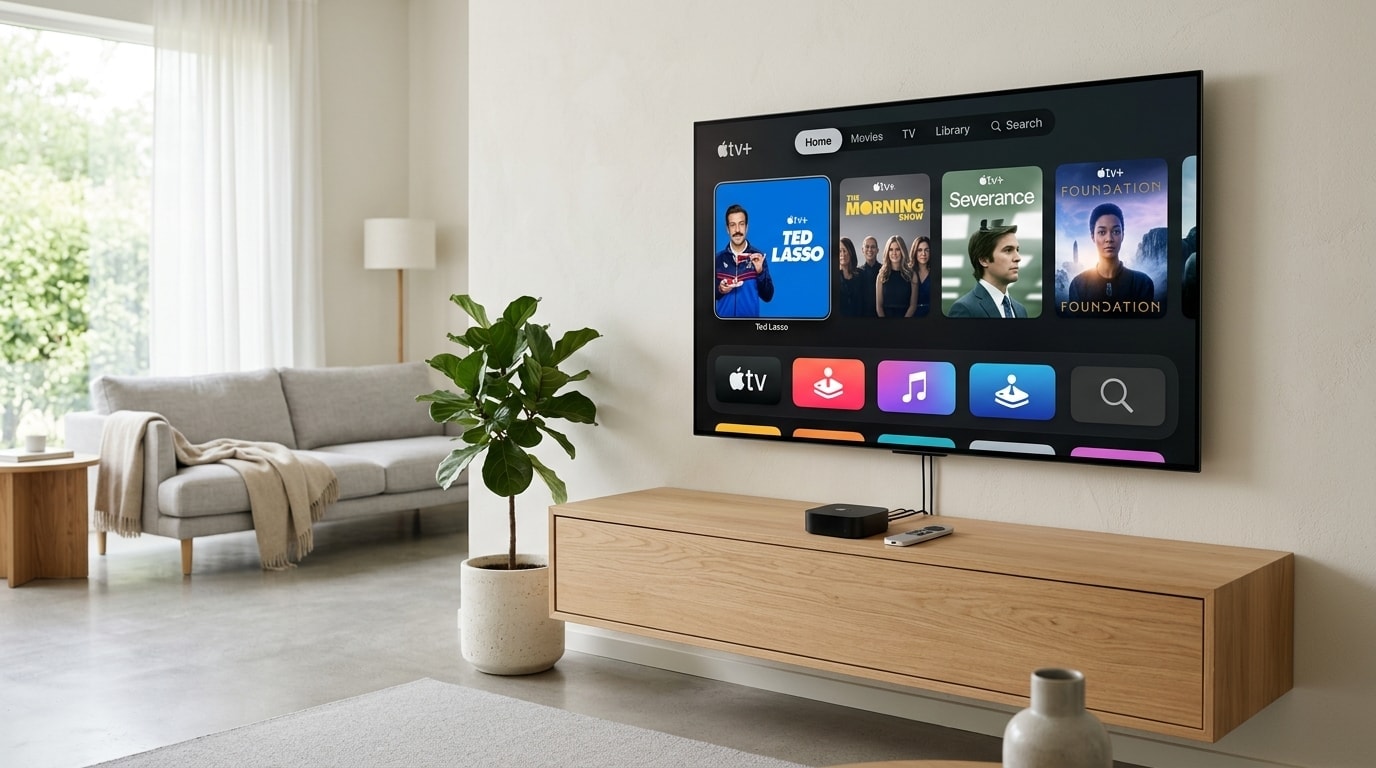
In the home theater and streaming landscape, the Apple TV 4K occupies a category of its own. While inexpensive HDMI streaming dongles and budget Android TV boxes dominate the mass market, discerning home theater enthusiasts recognize Apple's flagship set-top box as the pinnacle of video decoding, system stability, and interface fluidness.
Many IPTV subscribers assume that running live television requires an open-source Android box or a sideloaded Firestick.
Because Apple enforces rigorous app curation standards, sandboxed application storage, and privacy security protocols within tvOS, users often wonder whether Apple TV can serve as a broadcast-grade IPTV powerhouse.
+----------------------------------------------------------------------------------------------------+
|                         THE APPLE TV 4K IPTV PERFORMANCE ARCHITECTURE                              |
+----------------------------------------------------------------------------------------------------+
|                                                                                                    |
|  [Apple A15 Bionic Silicon]  -->  [Unified Memory Architecture]  -->  [Native tvOS App Store]      |
|   * 6 CPU Cores / 5 GPU Cores      * > 30 GB/s Memory Bandwidth        * Snappier IPTV / IPTVX / UHF|
|   * Hardware HEVC/AV1 Decoders     * Zero Out-of-Memory Crashes        * Native iCloud Sync         |
|                                                                                                    |
|  Result: Sub-200ms channel zapping, locked 60 FPS sports, zero stutter, and pristine 4K video.     |
+----------------------------------------------------------------------------------------------------+
The answer is an emphatic yes. In fact, when paired with modern tvOS applications such as Snappier, IPTVX, or UHF, the Apple TV 4K outclasses virtually every other streaming device on the market.
Its raw Apple Silicon hardware decoders, unified memory bandwidth, native frame-rate matching, and Gigabit Ethernet port deliver an authentic luxury television experience across OREXETV subscription channels.
This comprehensive 2026 engineering guide examines everything required to install, configure, and calibrate IPTV on Apple TV 4K.
Experience OREXETV
Upgrade your streaming with high-performance, anti-freeze 10.0 infrastructure. Over 50,000 live channels, 4K 60FPS sports, and 200,000+ VODs.
Quick Summary: The Apple TV 4K IPTV Setup Blueprint
For experienced users seeking an immediate implementation overview, execute these five foundational steps:
+---------------------------------------------------------------------------------------------+
|                         THE 5-STEP APPLE TV 4K SETUP BLUEPRINT                              |
+---------------------------------------------------------------------------------------------+
| Step 1: Open App Store        | On your Apple TV 4K, launch the native tvOS App Store.      |
| Step 2: Download Top Player   | Install "Snappier IPTV" (best performance) or "IPTVX"       |
|                               | (best UI) directly from the App Store. No sideloading!      |
| Step 3: Input Xtream Codes    | Select Xtream Codes API, enter your OREXETV Server URL,     |
|                               | Username, and Password, and check "Include VOD".            |
| Step 4: Synchronize Database  | Allow the app to download categories and EPG program data.  |
| Step 5: Calibrate Video/Audio | Set tvOS to "4K SDR + Match Dynamic Range & Frame Rate"    |
|                               | to ensure pristine 50Hz/60Hz sports motion without judder.  |
+---------------------------------------------------------------------------------------------+
The Hardware Advantage: Why Apple TV 4K Outperforms Every Other Box
To understand why an Apple TV 4K delivers a fundamentally smoother IPTV experience than competing streaming hardware, examine its computational specifications:
+---------------------------------------------------------------------------------------------------+
| 2026 HARDWARE ARCHITECTURE COMPARISON: APPLE TV 4K VS. COMPETITORS                                |
+------------------------+-------------------+-------------------+------------------+---------------+
| Device                 | CPU Architecture  | Memory Bandwidth  | Operating System | Gigabit Port  |
+------------------------+-------------------+-------------------+------------------+---------------+
| Apple TV 4K (3rd Gen)  | A15 Bionic (6-Core| > 30.0 GB/s       | tvOS (Clean, No  | YES (RJ-45    |
|                        | + 5-Core GPU)     | (Unified RAM)     | Ads or Bloatware)| 1000 Mbps)    |
| Nvidia Shield TV Pro   | Tegra X1+ (8-Core)| ~ 25.6 GB/s       | Android TV 11    | YES (RJ-45    |
|                        | + 256-Core Maxwell| (LPDDR4)          | (Ad-supported)   | 1000 Mbps)    |
| Amazon Fire TV Cube 3  | Octa-Core 2.2 GHz | ~ 17.0 GB/s       | Fire OS 7        | NO (10/100    |
|                        | MediaTek Poplar   | (LPDDR4x)         | (Heavy Telemetry)| Mbps built-in)|
| Fire TV Stick 4K Max   | Quad-Core 2.0 GHz | ~ 12.8 GB/s       | Fire OS 8        | NO (Requires  |
|                        | MediaTek MT8696T  | (LPDDR4)          | (Thermal limits) | OTG adapter)  |
+------------------------+-------------------+-------------------+------------------+---------------+
1. Immense RAM and Memory Bandwidth
Budget streaming sticks feature between 1.0 GB and 2.0 GB of conventional LPDDR4 memory operating over narrow memory buses. When loading a massive IPTV playlist containing 50,000 live channels, 200,000 VOD movies, and a 100MB Electronic Program Guide (EPG) file, budget devices frequently freeze, drop frames, or crash to the home screen.
The Apple TV 4K integrates 4GB of high-speed unified memory operating over a wide memory bus exceeding 30 GB/s of bandwidth.
- The entire channel directory and seven-day EPG data load into system memory in less than two seconds.
- Channel category scrolling occurs at a locked 60 FPS or 120 FPS without a single hitch.
- Switching between live sports, catch-up TV, and 4K cinema happens instantaneously.
2. Apple Silicon Hardware Video Decoders
The A15 Bionic chip incorporates dedicated hardware video decoders engineered to process ultra-high-bitrate H.264, H.265 (HEVC Main 10), and AV1 video streams.
- Because decoding occurs on dedicated silicon fixed-function units, the main CPU cores remain practically dormant during 4K 60 FPS playback.
- The device operates completely silent, draws minimal electric power, and generates virtually zero heat, eliminating thermal throttling entirely.
3. Native Gigabit Ethernet and Wi-Fi 6
While most streaming sticks lack an Ethernet port entirely and budget smart TVs feature obsolete 10/100 Mbps ports, the Apple TV 4K (128GB model) incorporates an authentic RJ-45 Gigabit Ethernet port.
- It communicates directly with your home router at 1,000 Mbps full-duplex speed.
- It delivers sub-millisecond local network ping, eliminating Wi-Fi packet jitter and buffering spikes during live sports.
Understanding tvOS App Store Architecture & Sandboxing
Unlike Android and Fire OS, Apple's tvOS operating system does not permit direct APK sideloading or unrestricted file system access. This architectural difference provides significant advantages alongside specific operational rules:
+---------------------------------------------------------------------------------------------+
|                           tvOS APPLICATION SANDBOXING ARCHITECTURE                          |
+---------------------------------------------------------------------------------------------+
|                                                                                             |
|   [ App Sandbox Container: Snappier / IPTVX / UHF ]                                         |
|      * Encrypted secure credentials storage (Keychain integration)                          |
|      * Local cache partition for EPG, channel icons, and stream buffers                     |
|      * Strict memory isolation: One crashing app cannot destabilize tvOS                    |
|      * Cloud synchronization: Playlists sync via iCloud to iPhone and iPad                  |
|                                                                                             |
|   Security Guarantee: Zero malware risk, no root exploits, and seamless App Store updates. |
+---------------------------------------------------------------------------------------------+
- Clean Installation: You do not need to hunt for sketchy APK download links or install Downloader apps. All tvOS players are downloaded directly from the official Apple App Store with one click.
- Automatic Background Updates: Player software receives continuous updates directly from developers through the App Store, ensuring compatibility with new video codecs and tvOS updates.
- iCloud Cross-Device Synchronization: Top tvOS players utilize Apple's CloudKit API. When you add your OREXETV subscription on your Apple TV, your playlist, channel favorites, and watch history automatically sync to your iPhone, iPad, and Mac.
The Top 5 IPTV Apps for Apple TV (tvOS) in 2026: Detailed Reviews
Because TiviMate is exclusively engineered for Android, Apple TV users select from a distinguished catalog of dedicated tvOS players. Below are the five premier choices evaluated for stability, speed, and design.
+---------------------------------------------------------------------------------------------------+
| 2026 tvOS IPTV PLAYER COMPARISON MATRIX                                                           |
+--------------------+--------------------+-------------------+-------------------+-----------------+
| Application        | Design Paradigm    | Zapping Speed     | iCloud Sync       | Multi-View Feeds|
+--------------------+--------------------+-------------------+-------------------+-----------------+
| Snappier IPTV      | Clean Apple Native | Sub-300ms (Fastest| YES               | YES (Up to 4)   |
| IPTVX              | Netflix / Modern UI| 500ms - 800ms     | YES               | YES (Up to 4)   |
| UHF                | Minimalist Tech    | 400ms             | YES               | YES (Dual screen|
| iPlayTV            | Classic Cable EPG  | 500ms             | Limited           | NO              |
| GSE Smart IPTV Pro | Utility Fallback   | 1.0 to 1.5 seconds| Manual backup     | NO              |
+--------------------+--------------------+-------------------+-------------------+-----------------+
1. Snappier IPTV — The Gold Standard for tvOS Performance
Snappier IPTV is widely regarded by power users as the absolute fastest and most reliable IPTV player on the tvOS platform.
- Pure Apple Native Architecture: Built using Swift and Metal, Snappier looks and feels like an official Apple app. It adheres strictly to Apple's Human Interface Guidelines.
- Blazing Zapping Speed: Leveraging custom mpv and AVPlayer video rendering engines, Snappier switches between high-bitrate 1080p 60 FPS sports channels in under 300 milliseconds.
- Multi-View Sports Grid: Enables users to watch up to four live sports matches simultaneously on a single screen with independent audio stream switching.
- iCloud Sync: Favorites, custom channel categories, and EPG configurations synchronize seamlessly across all your Apple devices.
2. IPTVX — The Ultimate Netflix-Style Streaming Experience
For users who prioritize visual elegance and family-friendly browsing, IPTVX transforms raw IPTV playlists into a luxury on-demand streaming service.
- Streaming Service UI: IPTVX organizes your OREXETV VOD library into high-resolution movie posters, backdrop artwork, cast biographies, Rotten Tomatoes ratings, and trailer previews.
- Apple Silicon Optimization: Features silky smooth scrolling animations, Auto Frame Rate matching, and background EPG caching.
- Smart Recommendations: Highlights trending movies, recently added TV show episodes, and upcoming sports events directly on your tvOS home screen shelf.
3. UHF — The Modern Minimalist Powerhouse
UHF has surged in popularity thanks to its modern aesthetic, lightning-fast sync times, and advanced stream format handling.
- Unified Interface: Combines clean typographic hierarchy with rapid channel switching.
- Dynamic EPG Matcher: Automatically resolves missing channel program schedules by matching channel titles against global EPG databases.
- Picture-in-Picture (PiP): Supports native tvOS Picture-in-Picture, allowing you to monitor a live sports broadcast while browsing other apps or navigating the system home screen.
4. iPlayTV — The Battle-Tested Veteran
iPlayTV is one of the longest-running IPTV players on the tvOS App Store.
- Classic Cable Layout: Features a traditional vertical channel list with horizontal program timeline schedules reminiscent of conventional satellite receivers.
- Reliable Video Core: Integrates multi-codec audio engines supporting AAC, AC3, E-AC3, and DTS passthrough.
5. GSE Smart IPTV & LillyPlayer — Versatile Utility Fallbacks
While featuring more utilitarian interfaces, these applications provide broad compatibility with older M3U playlist structures and custom HTTP headers.
Step-by-Step Setup Walkthrough: Configuring Xtream Codes on Apple TV 4K
Setting up your subscription takes less than five minutes. Below is the complete walkthrough using Snappier IPTV (the same principles apply to IPTVX and UHF).
+---------------------------------------------------------------------------------------------+
|                         XTREAM CODES CONFIGURATION BLUEPRINT                                |
+---------------------------------------------------------------------------------------------+
| Account Name:      OREXETV 4K                                                               |
| Server Address:    http://domain-from-welcome-message:port                                  |
| Username:          Your assigned account username (case-sensitive)                          |
| Password:          Your assigned account password (case-sensitive)                          |
| VOD Switch:        Check / Toggle "Load VOD (Movies & Series)"                              |
+---------------------------------------------------------------------------------------------+
Step 1: Download Your Chosen Player from the App Store
- Turn on your Apple TV and launch the App Store.
- Navigate to the Search tab, type Snappier (or IPTVX), and click Get / Install.
- Authenticate with your Apple ID password or double-click the side button on your iPhone when prompted.
Step 2: Launch the App and Add an Account
- Open the application from your home screen.
- Select Add Playlist or Add Account.
- Choose Xtream Codes API. (Always choose Xtream Codes over M3U URL for faster loading, dynamic category updates, and integrated VOD metadata).
Step 3: Enter Your OREXETV Credentials
- Account Name: Enter
OREXETV(or any custom label). - Server URL: Input the server address provided in your OREXETV confirmation email (e.g.,
http://server-address.top:8080). - Username & Password: Enter your assigned alphanumeric credentials.
- Pro Tip: Use your iPhone or iPad as a virtual keyboard! When the text field opens on your Apple TV, a notification appears on your nearby iPhone allowing you to copy-paste your credentials directly from your email.
Alternative Setup Walkthrough: Configuring IPTVX
If you prefer a movie-poster Netflix aesthetic over traditional EPG grids, IPTVX delivers the most visually stunning interface on tvOS:
- Open the App Store, download IPTVX, and launch the app.
- On the initial setup wizard, select Xtream API.
- Fill in your Account Name (OREXETV), Server URL, Username, and Password.
- In the configuration options, toggle Auto Refresh Playlist to Every 24 Hours and toggle Load TV Series Artwork to ON.
- Click Add Account. IPTVX will download high-resolution cover art, cast lists, trailer links, and Rotten Tomatoes ratings for your entire on-demand library.
- Under Settings $ ightarrow$ Player, select AVPlayer for live TV streams and mpv for 4K MKV movies with multi-channel audio tracks.
Alternative Setup Walkthrough: Configuring UHF
For users who value clean minimalism and dynamic EPG resolution:
- Install UHF from the tvOS App Store.
- Click + Add Playlist and select Xtream Codes.
- Input your OREXETV credentials and server address.
- Under Playlist Settings, select Hardware Decoding.
- Enable Picture-in-Picture in UHF settings to allow floating video windows while navigating the Apple TV interface.
Advanced Apple Ecosystem Features for IPTV Streamers
The true magic of running IPTV on an Apple TV 4K lies in its tight synergy with the broader Apple hardware and software ecosystem.
+-----------------------------------------------------------------------------------------------+
|                       APPLE ECOSYSTEM INTEGRATION FOR IPTV                                    |
+--------------------------+------------------------------+-------------------------------------+
| Apple Ecosystem Feature  | Technical Mechanism          | Practical Streaming Benefit         |
+--------------------------+------------------------------+-------------------------------------+
| Spatial Audio Head-Track | Gyroscopes in AirPods Pro/Max| Stadium immersion without disturbing|
|                          | lock soundstage to TV screen | family members late at night        |
| Continuity Camera Overlay| Apple Watch / iPhone sensors | Picture-in-Picture baby monitors &  |
|                          | integrate into tvOS Control  | doorbell cameras over live sports   |
| AirPlay 2 Multi-Room     | Synchronized ALAC streams    | Broadcast match commentary across   |
|                          | across HomePod speakers      | kitchen, patio, and living room     |
| Universal Clipboard      | iCloud encrypted token sync  | Instant 1-second copy-paste of long |
|                          | between Mac, iPhone & tvOS   | Xtream Codes server URLs            |
+--------------------------+------------------------------+-------------------------------------+
1. Late-Night Sports Viewing with Spatial Audio & AirPods
Watching a championship game at 2:00 AM with a traditional 5.1 surround sound system risks waking up household members and neighbors.
- With Apple TV 4K, pairing a set of AirPods Pro (2nd Gen) or AirPods Max unlocks Personalized Spatial Audio with Dynamic Head Tracking.
- tvOS analyzes incoming 5.1-channel Dolby Digital sports streams and renders an acoustic 3D soundstage around your head.
- When you turn your head toward the kitchen, the stadium cheers and commentator voices remain anchored directly to the physical location of your television screen.
- You enjoy full arena volume, visceral bass, and spatial crowd chants without generating a single decibel of ambient noise in your living room.
2. AirPlay 2 Multi-Room Audio Distribution
Hosting a game-day party often means guests move between the living room, dining room, kitchen, and outdoor patio.
- In tvOS Control Center (hold the TV button on the Siri Remote), select the audio output menu.
- Check the boxes for your HomePod mini in the kitchen and AirPlay 2 patio speakers.
- Live match commentary and stadium atmosphere are transmitted across every room in perfect, phase-aligned acoustic synchronization, ensuring nobody misses a goal while grabbing refreshments.
tvOS System Optimization: Display & Audio Calibration Guide
To unlock the full visual and acoustic potential of your Apple TV 4K, calibrate your tvOS system settings to match broadcast industry standards.
+---------------------------------------------------------------------------------------------------+
|                     OPTIMAL tvOS SETTINGS FOR HIGH-BITRATE IPTV                                   |
+----------------------------+-----------------------------+----------------------------------------+
| Menu Location              | Setting Name                | Recommended Value & Technical Reason   |
+----------------------------+-----------------------------+----------------------------------------+
| Video & Audio -> Format    | Resolution / Dynamic Range  | 4K SDR (60Hz / 50Hz based on region)   |
| Video & Audio -> Match     | Match Dynamic Range         | ON (Engages HDR10/Dolby Vision on VOD) |
| Video & Audio -> Match     | Match Frame Rate            | ON (Synchronizes 50Hz/60Hz broadcasts) |
| Video & Audio -> Audio     | Audio Output                | Receiver / Soundbar (eARC)             |
| Video & Audio -> Audio     | Audio Format                | Auto (Decodes uncompressed LPCM 5.1)   |
| Video & Audio -> Video     | HDMI Output                 | YCbCr (Native broadcast color space)   |
| Video & Audio -> Video     | Chroma Subsampling          | 4:4:4 (Requires 18+ Gbps HDMI cable)   |
+----------------------------+-----------------------------+----------------------------------------+
1. The "4K SDR Default + Match Content" Rule
The most common mistake Apple TV owners make is configuring their default display output to 4K HDR or 4K Dolby Vision.
- The Problem: When default output is set to HDR, the Apple TV forces standard dynamic range (SDR) live television broadcasts into an artificial HDR color container.
- Colors appear oversaturated, skin tones look uncomfortably orange, and your television's backlight runs at 100% continuously, washing out black levels and introducing motion artifacts.
- The Golden Rule:
- Set your default tvOS Format to 4K SDR (60Hz) in the Americas or 4K SDR (50Hz) in Europe.
- Navigate to Match Content and toggle Match Dynamic Range to ON.
- Toggle Match Frame Rate to ON.
- What Happens When You Stream: Standard live television plays in pristine, natural SDR. When you tune into a native 4K HDR live sports event or watch a 4K Dolby Vision blockbuster film, the Apple TV automatically signals your TV to engage HDR mode. When the movie ends, it returns smoothly to SDR.
2. Audio Passthrough and Surround Sound
The Apple TV 4K does not bitstream legacy Dolby Digital AC3 directly to soundbars; instead, it utilizes a high-end internal decoding architecture:
- It decodes the incoming Dolby Digital stream internally and outputs it as uncompressed, multi-channel Linear PCM (LPCM 5.1 or 7.1) over HDMI.
- Ensure your tvOS Audio Format is set to Auto.
- This guarantees bit-perfect, uncompressed surround sound without lossy secondary re-encoding.
Mastering the Apple TV Siri Remote for Live IPTV
The sleek aluminum Apple TV Siri Remote provides intuitive gestures that transform live television navigation:
+---------------------------------------------------------------------------------------------+
|                         SIRI REMOTE LIVE NAVIGATION GESTURE MATRIX                          |
+--------------------------+------------------------------------------------------------------+
| Gesture                  | Action Triggered in Live TV                                      |
+--------------------------+------------------------------------------------------------------+
| Clickpad Outer Ring Tap  | Incremental channel hopping (Channel Up / Channel Down)          |
| Clickpad Touch Scrubbing | Rapidly scrub through 7-day EPG timeline or movie playback       |
| Clickpad Center Hold     | Open quick audio, subtitle, and closed-caption overlay           |
| TV/Control Center Button | Swipe down to monitor HomeKit security cameras or audio output   |
| Double-Click TV Button   | Open App Switcher to instantly toggle between IPTV and sports app|
| Siri Microphone Button   | Voice search across VOD movie titles and actor filmographies     |
+--------------------------+------------------------------------------------------------------+
- Rapid Channel Surfing (Clickpad Touch Scrubbing): In Snappier or IPTVX, resting your thumb on the outer edge of the clickpad wheel activates touch scrubbing. Swiping clockwise or counter-clockwise flies through thousands of international channels in seconds.
- Instant Catch-Up Rewind: If you missed a penalty kick or crucial play, clicking the left edge of the clickpad executes an instant 10-second replay jump using catch-up archives.
- Picture-in-Picture (PiP): Clicking the PiP icon minimizes the current channel into a floating window in the corner of your screen, allowing you to monitor a live match while exploring the full channel guide.
Apple TV Hardware Generations: Which Model is Best for IPTV?
If you are purchasing an Apple TV specifically for IPTV streaming, review this generation comparison:
+---------------------------------------------------------------------------------------------------+
| APPLE TV GENERATIONAL BUYING GUIDE                                                                |
+------------------------+-------------------+-------------------+------------------+---------------+
| Generation / Model     | Processor         | Networking        | HDR Capabilities | IPTV Verdict  |
+------------------------+-------------------+-------------------+------------------+---------------+
| Apple TV HD (4th Gen)  | A8 (Obsolete)     | 10/100 Ethernet   | SDR Only (1080p) | DO NOT BUY    |
| Apple TV 4K (1st Gen)  | A10X Fusion       | Gigabit Ethernet  | HDR10 / Dolby Vis| ADEQUATE      |
| Apple TV 4K (2nd Gen)  | A12 Bionic        | Gigabit Ethernet  | HDR10 / 60fps HDR| EXCELLENT     |
| Apple TV 4K (3rd Gen)  | A15 Bionic        | Gigabit (128GB)   | HDR10+ / DolbyVis| THE BEST PICK |
+------------------------+-------------------+-------------------+------------------+---------------+
- Avoid the Apple TV HD (2015): The obsolete A8 chip cannot decode modern HEVC 4K streams and will stutter severely.
- The Recommended Model: Purchase the Apple TV 4K (3rd Generation) Wi-Fi + Ethernet (128GB). In addition to doubling the flash storage, this model includes the physical Gigabit Ethernet jack, which is absent on the cheaper Wi-Fi-only model.
Apple TV 4K vs. Nvidia Shield TV Pro: The Ultimate Hardware Head-to-Head
The two undisputed kings of streaming media hardware are the Apple TV 4K and the Nvidia Shield TV Pro. Here is how they compare for dedicated IPTV use:
+---------------------------------------------------------------------------------------------------+
| HEAD-TO-HEAD: APPLE TV 4K VS. NVIDIA SHIELD TV PRO                                                |
+--------------------------+------------------------------------+-----------------------------------+
| Evaluation Criteria      | Apple TV 4K (3rd Gen)              | Nvidia Shield TV Pro              |
+--------------------------+------------------------------------+-----------------------------------+
| User Interface Fluidness | Unmatched (Clean, zero ads, 60fps) | Good (Contains sponsored banners) |
| Audio Passthrough        | Decodes to LPCM 5.1/7.1            | Full TrueHD / DTS-X Bitstream     |
| Top IPTV Client App      | Snappier IPTV / IPTVX              | TiviMate IPTV Player              |
| Frame Rate Matching      | Perfect system-level integration   | App-dependent / Beta feature      |
| Sideloading Flexibility  | Closed App Store (Zero sideload)   | Full Android APK sideloading      |
| Bluetooth Headphone Sync | Spatial Audio on AirPods Pro/Max   | Standard stereo Bluetooth         |
+--------------------------+------------------------------------+-----------------------------------+
- Choose Apple TV 4K if: You want a luxurious, ad-free user interface, seamless ecosystem integration with iPhone/iPad, flawless native Auto Frame Rate switching, and the ability to use AirPods Spatial Audio for private late-night sports viewing.
- Choose Nvidia Shield Pro if: You require lossless TrueHD Atmos bitstreaming to a high-end dedicated home theater receiver, or you are completely married to the TiviMate interface.
Troubleshooting Common Apple TV IPTV Issues
When glitches occur, use these verified technical resolutions:
1. App Store Search Returns No Results for "IPTV"
- Root Cause: Apple occasionally filters search queries containing the exact term "IPTV" in certain regional App Store storefronts.
- Action: Search directly for the specific application name: Snappier, IPTVX, UHF, or iPlayTV.
2. Channel Fails to Load / Infinite Spinning Wheel
- Root Cause: Stream format incompatibility or transient network packet loss.
- Action:
- In your player settings, toggle stream format from HLS (.m3u8) to MPEG-TS (.ts).
- Switch video player engine from native AVPlayer to mpv (Hardware Accelerated).
- Verify your home network bandwidth using our Internet Speed Requirements for IPTV Guide.
3. Audio is Completely Silent on Certain Movie Streams
- Root Cause: The movie file uses a 5.1 DTS or AC3 audio track that the default player engine is attempting to downmix incorrectly.
- Action: In player settings, switch audio output to Software Audio Decode or enable the Extended Audio Codec Pack within the app.
4. Apple TV Screen Briefly Goes Black When Changing Channels
- Root Cause: This is normal HDMI behavior when Match Frame Rate is enabled. When switching from a 60 FPS channel to a 50 FPS channel, your TV momentarily blacks out for 1 second to sync its physical refresh rate.
- Action: This confirms your display is correctly eliminating motion judder! If the brief pause bothers you, disable Match Frame Rate in tvOS settings (though motion will be slightly less smooth).
Frequently Asked Questions
Final Recommendation: Elevate Your Living Room Entertainment
Pairing an Apple TV 4K with a premium OREXETV streaming subscription delivers the ultimate cord-cutting experience. By following this guide:
- Acquire the Apple TV 4K (3rd Gen) with Gigabit Ethernet.
- Install Snappier IPTV or IPTVX from the App Store.
- Configure your Xtream Codes login credentials.
- Set tvOS to 4K SDR with Match Dynamic Range & Frame Rate ON.
- Hardwire with Cat6 Ethernet for rock-solid stability.
You will enjoy instant channel zapping, flawless 60 FPS live sports, pristine 4K video fidelity, and an elegant living room interface that redefines modern television.