How to Install & Optimize IPTV on Amazon Firestick: The Complete 2026 Sideloading & Performance Blueprint
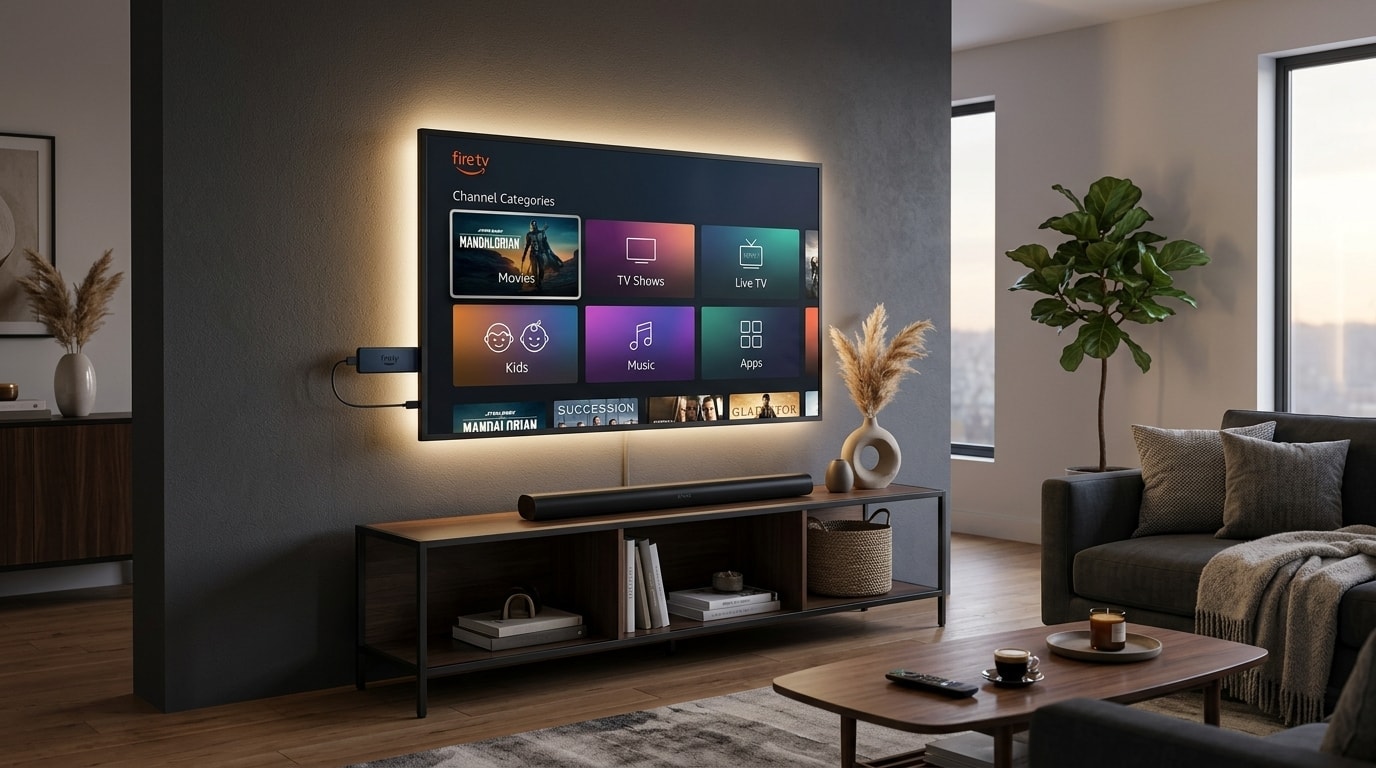
The Amazon Fire TV Stick stands as the most popular streaming media player in the world. Millions of cord-cutters utilize Amazon's compact HDMI dongles to replace expensive cable subscriptions with versatile, internet-based television. With an accessible price point, an intuitive remote control, and a customized Android-based operating system (Fire OS), the Firestick provides an exceptional platform for IPTV streaming.
However, many users encounter significant frustration shortly after purchasing a Firestick for live television:
- The streaming application stutters or drops frames during high-motion sports broadcasts.
- The Firestick interface feels sluggish, laggy, and unresponsive to remote commands.
- Streams suddenly freeze or crash back to the Fire OS home screen during primetime viewing.
- The device overheats, enters continuous reboot loops, or displays low-storage error warnings.
These problems do not stem from inherent defects in the Fire TV hardware. Rather, they are the direct consequence of three common missteps: utilizing an underpowered Firestick model, downloading unoptimized media players, and leaving Fire OS in its bloated factory state with aggressive background telemetry running continuously.
+----------------------------------------------------------------------------------------------------+
|                         THE FIRESTICK IPTV OPTIMIZATION PIPELINE                                   |
+----------------------------------------------------------------------------------------------------+
|                                                                                                    |
|  [Hardware Selection]  --> [System Preparation]  --> [App Sideloading]  --> [OS Debloating & Tune] |
|   * 4K Max (2nd Gen)        * Hidden Dev Menu         * TiviMate / Smarters  * Disable Telemetry   |
|   * 2GB RAM / Wi-Fi 6E      * Unknown Sources ON      * Hardware MediaCodec  * Prevent Thermal Lag |
|                                                                                                    |
|  Result: 4K 60 FPS playback, sub-second channel zapping, zero memory crashes, and fluid operation.|
+----------------------------------------------------------------------------------------------------+
When properly prepared, sideloaded, and calibrated, an Amazon Fire TV Stick transforms into a broadcast-grade streaming terminal that delivers fluid 4K 60 FPS video, instant channel zapping, and rock-solid reliability across OREXETV subscription channels.
This definitive 2026 technical blueprint provides an exhaustive, step-by-step guide to installing, configuring, and optimizing IPTV on any Amazon Fire TV device.
Experience OREXETV
Upgrade your streaming with high-performance, anti-freeze 10.0 infrastructure. Over 50,000 live channels, 4K 60FPS sports, and 200,000+ VODs.
Quick Summary: The 5-Minute Firestick Setup Blueprint
For experienced users seeking an immediate installation roadmap, execute these foundational phases:
+---------------------------------------------------------------------------------------------+
|                           THE 5-MINUTE FIRESTICK SETUP ROADMAP                              |
+---------------------------------------------------------------------------------------------+
| Phase 1: Reveal Developer Options | Navigate to Settings -> My Fire TV -> About -> Click    |
|                                   | your Fire TV model name 7 times until unlocked.         |
| Phase 2: Install Downloader       | Search the Amazon Appstore for "Downloader", install    |
|                                   | the orange app, and grant File Storage permissions.     |
| Phase 3: Authorize Unknown Apps   | Return to Developer Options -> Install Unknown Apps ->   |
|                                   | Toggle "Downloader" to ON.                              |
| Phase 4: Sideload TiviMate Player | Open Downloader, enter the direct shortcode for         |
|                                   | TiviMate or IPTV Smarters Pro, and complete install.    |
| Phase 5: Connect OREXETV & Tune   | Launch player, input Xtream Codes credentials, enable   |
|                                   | Hardware decoding, and disable Amazon telemetry.        |
+---------------------------------------------------------------------------------------------+
Fire TV Hardware Comparison: Which Firestick Model is Best for IPTV?
Amazon manufactures several variations of the Fire TV streaming stick. While all models share a similar visual aesthetic, their internal processing architectures, RAM capacities, and video decoding engines differ fundamentally.
+---------------------------------------------------------------------------------------------------+
| 2026 AMAZON FIRE TV HARDWARE BENCHMARK COMPARISON                                                 |
+------------------------+-------------------+-------------------+------------------+---------------+
| Model                  | Processor / Clock | RAM Capacity      | Wi-Fi Standard   | 4K 60FPS IPTV |
+------------------------+-------------------+-------------------+------------------+---------------+
| Fire TV Stick Lite     | Quad-Core 1.7 GHz | 1.0 GB DDR4       | Wi-Fi 5 (802.11ac)| POOR (1080p)  |
| Fire TV Stick (HD)     | Quad-Core 1.7 GHz | 1.0 GB DDR4       | Wi-Fi 5 (802.11ac)| POOR (1080p)  |
| Fire TV Stick 4K (2nd) | Quad-Core 1.7 GHz | 2.0 GB DDR4       | Wi-Fi 6 (802.11ax)| GOOD          |
| Fire TV Stick 4K Max   | Quad-Core 2.0 GHz | 2.0 GB LPDDR4     | Wi-Fi 6E (Tri)   | EXCELLENT     |
| Fire TV Cube (3rd Gen) | Octa-Core 2.2 GHz | 2.0 GB LPDDR4x    | Wi-Fi 6E + Eth   | BROADCAST TIER|
+------------------------+-------------------+-------------------+------------------+---------------+
Why You Should Avoid the Fire TV Stick Lite / HD for Heavy IPTV
The entry-level Fire TV Stick Lite and standard Fire TV Stick (HD) feature only 1.0 GB of system RAM.
In modern IPTV streaming, a typical channel playlist contains 50,000+ live channels, 200,000+ on-demand titles, and a multi-megabyte Electronic Program Guide (EPG) database.
- When an IPTV player attempts to cache this massive catalog into system memory on a 1GB device, the Fire OS memory manager becomes overwhelmed.
- Background processes are aggressively terminated, navigation becomes choppy, and the app frequently crashes back to the home screen.
- Furthermore, these budget models lack dedicated 4K hardware decoders and suffer from severe motion judder when rendering high-frame-rate sports downlinks.
The Sweet Spot: Amazon Fire TV Stick 4K Max (2nd Gen)
For the vast majority of users, the Fire TV Stick 4K Max (2nd Generation) represents the optimal price-to-performance choice:
- Processor: Powered by a 2.0 GHz MediaTek MT8696T quad-core CPU and an 850 MHz GE9215 GPU, providing snappy interface rendering and rapid channel transitions.
- 2GB RAM: Provides ample headroom to store extensive EPG databases and high-resolution channel logos in memory without crashing.
- Wi-Fi 6E Support: Accesses the clean 6.0 GHz radio spectrum, bypassing congested 2.4 GHz and 5.0 GHz household Wi-Fi bands to eliminate wireless packet loss.
- 16GB Internal Storage: Doubles the storage space of older models, allowing you to install multiple streaming apps and maintain a healthy playback cache.
Phase 1: Preparing Your Firestick for IPTV (The 7-Clicks Secret)
Because premier IPTV players like TiviMate and specialized Smarters releases are designed specifically for Android TV and are not distributed through Amazon's commercial Appstore, you must configure Fire OS to permit application sideloading.
Step 1: Reveal the Hidden Developer Options Menu
In recent Fire OS updates (Fire OS 7 and Fire OS 8), Amazon intentionally hid the Developer Options menu to deter users from modifying system software. To restore it:
- Turn on your television and boot into the Firestick home screen.
- Navigate to the gear icon (Settings) located on the far right of the navigation ribbon.
- Scroll down and select My Fire TV (or Device & Software on some versions).
- Click on About at the top of the menu.
- Highlight the very first item, which displays your device name (e.g., Fire TV Stick 4K Max).
- Press the Center/Select button on your remote 7 times in rapid succession.
- At the bottom of the screen, a notification prompt will appear stating: "No need, you are already a developer."
- Press the Back button once; you will now observe the Developer Options menu positioned directly beneath the About tab.
+---------------------------------------------------------------------------------------------+
|                       REVEALING HIDDEN DEVELOPER OPTIONS (STEP-BY-STEP)                     |
+---------------------------------------------------------------------------------------------+
| [Home Screen] -> [Settings Gear] -> [My Fire TV] -> [About] -> [Device Name (Click 7x)]    |
|                                                                                             |
| Visual Confirmation: "No need, you are already a developer" prompt appears at screen bottom.|
+---------------------------------------------------------------------------------------------+
Step 2: Install the Downloader Application
Downloader, developed by AFTVnews, is the premier utility for fetching APK files directly from web servers onto Fire TV hardware.
- From the Fire TV home screen, scroll to the Find / Search icon.
- In the search field, type Downloader using the virtual keyboard (or hold the Alexa voice button on your remote and say "Downloader").
- Select the orange Downloader app tile from the search results.
- Click Download or Get to install the application.
- Once installation finishes, click Open.
- When prompted: "Allow Downloader to access photos, media, and files on your device?", select Allow. (Granting storage access is essential for saving downloaded APK files).
Step 3: Grant Unknown Sources Permissions to Downloader
- Return to Settings $ ightarrow$ My Fire TV $ ightarrow$ Developer Options.
- Select Install Unknown Apps (or Apps from Unknown Sources on older models).
- Locate Downloader in the list of installed applications.
- Click the center button to toggle the setting from OFF to ON.
- Your Firestick is now fully authorized to download and execute third-party IPTV client software.
Phase 2: Sideloading the Premier IPTV Players
With system authorizations established, you can now install your preferred media playback engine. Below are the installation protocols for the two industry-leading applications.
+---------------------------------------------------------------------------------------------------+
| PLAYER SELECTION: TIVIMATE VS. IPTV SMARTERS PRO                                                  |
+-------------------------+------------------------------------+------------------------------------+
| Feature Parameter       | TiviMate IPTV Player (Top Pick)    | IPTV Smarters Pro (Versatile)      |
+-------------------------+------------------------------------+------------------------------------+
| User Interface          | Traditional Digital Cable / Sat EPG| Modern Touch / Card Grid Layout    |
| Channel Zapping Speed   | Sub-second (< 400ms)               | 1.0 to 2.0 seconds                 |
| Auto Frame Rate (AFR)   | Native hardware-level support      | Limited / software dependent       |
| Multi-View Feeds        | Up to 4 screens simultaneously     | Up to 4 screens (Pro version)      |
| Catch-Up Navigation     | Integrated directly into guide     | Separate menu tab                  |
| Resource Consumption    | Highly optimized; minimal RAM load | Moderate RAM utilization           |
+-------------------------+------------------------------------+------------------------------------+
Option A: Installing TiviMate IPTV Player (The #1 Choice for Firestick)
TiviMate is universally regarded by audio/video enthusiasts as the finest IPTV player ever developed for Android TV and Fire OS. Its interface mirrors high-end satellite receivers, offering instantaneous channel zapping, multi-view sports capabilities, and robust EPG management.
Step-by-Step Installation:
- Launch the Downloader application from your Apps screen.
- Click on the URL address bar in the center of the screen to open the virtual keyboard.
- Enter the official TiviMate direct numeric download shortcode:
272483(or enter the full official web address:https://tivimate.com). - Click Go. Downloader will automatically redirect to the server and initiate the APK download (approximately 15 MB).
- Once the download completes, a system installation dialog will appear automatically.
- Click Install at the bottom right corner of the screen.
- Once finished, click Done.
- Downloader will display a prompt asking if you wish to delete the installation file. Click Delete, and then click Delete a second time. This clears the APK file from your Firestick's internal flash storage, preserving precious system RAM.
+---------------------------------------------------------------------------------------------+
|                           TIVIMATE DOWNLOADER SHORTCODE BLUEPRINT                           |
+---------------------------------------------------------------------------------------------+
| [Open Downloader] -> [Enter URL Bar] -> [Type: 272483] -> [Click Go] -> [Install] -> [Done] |
|                                                                                             |
| Post-Install Cleanup: Always click "Delete" twice to purge the downloaded APK installer.    |
+---------------------------------------------------------------------------------------------+
Option B: Installing IPTV Smarters Pro
IPTV Smarters Pro offers an accessible, card-based interface with distinct tabs for Live TV, Movies, Series, and Multi-Screen viewing, making it an excellent alternative for family households.
Step-by-Step Installation:
- Open the Downloader application.
- In the URL input field, type the direct shortcode:
80516(or enter:https://www.iptvsmarters.com/smarters.apk). - Click Go to download the package.
- Click Install when prompted by Fire OS.
- Once installation finishes, click Done, and delete the temporary installer file.
Phase 3: Connecting Your OREXETV Subscription
Once your player application is installed, connect your active OREXETV subscription using the high-performance Xtream Codes API protocol.
+---------------------------------------------------------------------------------------------+
|                         XTREAM CODES API CONFIGURATION MATRIX                               |
+---------------------+-----------------------------------------------------------------------+
| Account Name        | OREXETV (or any descriptive personal label)                           |
| Server URL          | http://domain-provided-in-activation-email:port                       |
| Username            | Your unique subscriber username (case-sensitive)                      |
| Password            | Your unique subscriber password (case-sensitive)                      |
| VOD Ingestion       | Check "Include VOD (Movies & Series)"                                 |
+---------------------+-----------------------------------------------------------------------+
Step-by-Step Configuration in TiviMate:
- Open TiviMate from your Firestick Apps menu.
- On the welcome screen, select Add Playlist.
- Choose Xtream Codes as the connection protocol. (Always select Xtream Codes over M3U URL; Xtream Codes categorizes channels, series, and EPG schedules dynamically with significantly faster sync times).
- Enter the Server URL provided in your OREXETV confirmation WhatsApp message or email.
- Enter your assigned Username and Password. Ensure precise case sensitivity, as capital letters matter.
- Check the box labeled Include VOD (Video On Demand) to populate the movie and TV show libraries.
- Click Next. TiviMate will connect to the OREXETV server clusters, download your authorized channel packages, and synchronize the Electronic Program Guide.
- When the screen displays "Playlist is processed", click Done to enter the live TV guide.
Phase 4: Fire OS System Tuning & Optimization for IPTV
A standard out-of-the-box Firestick allocates significant CPU and memory resources to continuous Amazon telemetry, advertising tracking, and video autoplay feeds. Executing the following system optimizations restores up to 35% of system performance, ensuring butter-smooth IPTV playback.
+---------------------------------------------------------------------------------------------------+
|                     ESSENTIAL FIRE OS PRIVACY & PERFORMANCE ADJUSTMENTS                           |
+----------------------------+-----------------------------+----------------------------------------+
| Menu Location              | Setting Name                | Action & Technical Purpose             |
+----------------------------+-----------------------------+----------------------------------------+
| Preferences -> Privacy     | Device Usage Data           | Turn OFF; stops background reporting   |
| Preferences -> Privacy     | Collect App Usage Data      | Turn OFF; frees CPU cycles             |
| Preferences -> Privacy     | Interest-Based Ads          | Turn OFF; disables ad profile logging  |
| Preferences -> Featured    | Allow Video Autoplay        | Turn OFF; eliminates home screen lag   |
| Preferences -> Featured    | Allow Audio Autoplay        | Turn OFF; stops silent background sound|
| Applications               | Appstore -> Auto Updates    | Turn OFF; prevents game lag mid-stream |
| Applications               | In-App Purchases            | Turn OFF; streamlines player execution |
| Display & Sounds -> Audio  | Navigation Sounds           | Turn OFF; eliminates UI audio latency  |
| Display & Sounds -> Video  | Match Original Frame Rate   | Turn ON; enables native 50/60Hz sync   |
+----------------------------+-----------------------------+----------------------------------------+
1. Disable Amazon Background Telemetry & Data Monitoring
By default, Fire OS monitors every remote click, app launch, and system event, transmitting diagnostic telemetry packets back to Amazon's data centers.
- Navigate to Settings $ ightarrow$ Preferences $ ightarrow$ Privacy Settings.
- Set Device Usage Data to OFF.
- Set Collect App Usage Data to OFF.
- Select Interest-Based Ads and toggle it to OFF.
- Back out one level, click Data Usage Monitoring, and turn it completely OFF.
2. Turn Off Video and Audio Autoplay on the Home Screen
When hovering over the Firestick home screen, promotional trailers and ads automatically play video and audio in the background. If you leave an IPTV player paused to visit the home screen, this autoplay consumes vital RAM and causes video decoders to hitch.
- Navigate to Settings $ ightarrow$ Preferences $ ightarrow$ Featured Content.
- Turn Allow Video Autoplay to OFF.
- Turn Allow Audio Autoplay to OFF.
3. Match Original Frame Rate (AFR) Calibration
- Navigate to Settings $ ightarrow$ Display & Sounds $ ightarrow$ Display.
- Locate Match Original Frame Rate and toggle it to ON.
- This enables system-level HDMI handshaking so compatible players (like TiviMate) can dynamically switch your screen between 50Hz and 60Hz depending on whether you are watching European football or American sports.
Power User Hardware Upgrades: Expanding Storage and Hardwiring Ethernet
The Firestick's native hardware connectivity can be substantially expanded using inexpensive accessories, turning a budget stick into a powerhouse home theater setup.
+----------------------------------------------------------------------------------------------------+
|                         FIRESTICK HARDWARE EXPANSION TOPOLOGY                                      |
+----------------------------------------------------------------------------------------------------+
|                                                                                                    |
|    [ Wall Power Outlet ]                                                                           |
|             |                                                                                      |
|    [ Original Amazon Power Brick ]                                                                 |
|             |                                                                                      |
|    [ Micro-USB Power Lead ]                                                                        |
|             |                                                                                      |
|   +---------v---------+                                                                            |
|   | Micro-USB OTG 'Y' | <--- Female USB 2.0 / 3.0 Hub Port                                         |
|   | Splitter Cable    |       |                                                                    |
|   +---------+---------+       +---> [ USB 3.0 128GB Flash Drive (PVR DVR Storage) ]                |
|             |                 |                                                                    |
|   [ Male Micro-USB End ]      +---> [ USB to RJ-45 Ethernet Gigabit Adapter ]                      |
|             |                                                                                      |
|   [ Fire TV Stick 4K Max ]                                                                         |
|             |                                                                                      |
|   [ HDMI Extender Cable ]                                                                          |
|             |                                                                                      |
|   [ Television HDMI 2.1 Port ]                                                                     |
|                                                                                                    |
+----------------------------------------------------------------------------------------------------+
1. Adding a USB 3.0 Flash Drive via Micro-USB OTG Cable
Because streaming sticks feature limited internal storage (8GB to 16GB), heavy IPTV users quickly run out of space when downloading extensive EPG data or recording live broadcasts.
- Purchase an inexpensive Micro-USB OTG (On-The-Go) "Y" Splitter Cable.
- Plug the male micro-USB end of the OTG cable into the side port of your Firestick.
- Connect your original Amazon power cord to the female micro-USB power lead on the OTG adapter.
- Plug a high-speed USB 3.0 Flash Drive (64GB or 128GB) into the standard female USB port.
- In TiviMate $ ightarrow$ Settings $ ightarrow$ Other $ ightarrow$ Recording, select your USB flash drive as the destination folder. You can now pause, rewind, and schedule dozens of hours of live sports and movies.
2. Hardwiring with an Ethernet Adapter
While Wi-Fi 6E is exceptionally capable, wired Ethernet remains the gold standard for zero-jitter streaming.
- Attach an Amazon Ethernet Adapter for Fire TV (or a compatible gigabit USB-Ethernet adapter) into your OTG cable.
- Run a Cat6 network line from your home router directly into the adapter.
- The Firestick will automatically disable Wi-Fi and route all video traffic through the stable, hardwired connection.
Critical Power & Thermal Management: Preventing Brownouts and Overheating
Thermal throttling and power instability account for more than 70% of mysterious Firestick crashes. Understanding these hardware vulnerabilities prevents unneeded troubleshooting.
+---------------------------------------------------------------------------------------------+
|                           THERMAL & POWER MANAGEMENT RULES                                  |
+---------------------------------------------------------------------------------------------+
| 1. The TV USB Port Trap       | Never power your Firestick from your television's service   |
|                               | USB port (0.5A). Always use the 5V/2A wall power adapter.   |
| 2. Use the HDMI Extender      | The included 4-inch flexible HDMI cable prevents the stick  |
|                               | from absorbing heat radiating from the TV's internal boards.|
| 3. Maintain Airflow Clearance | Avoid sealing the Firestick inside tightly closed media     |
|                               | cabinets without passive ventilation slots.                 |
+---------------------------------------------------------------------------------------------+
1. The Television USB Port Mistake (Preventing Brownout Reboots)
Many users plug their Firestick's micro-USB power cord directly into the USB port on the back of their television to eliminate messy cables.
- The Danger: Most television USB ports output only 500mA (0.5 Amps) of electric current. The Fire TV Stick 4K and 4K Max require 1,000mA to 2,000mA (1.0 to 2.0 Amps), especially during intense 4K 60 FPS hardware decoding.
- When an action-heavy sports sequence demands maximum GPU power, the Firestick experiences a momentary voltage drop ("brownout"). The device crashes instantly and restarts in an endless reboot loop.
- The Rule: Always power your Firestick using the official 5V/2A wall power adapter plugged directly into a wall outlet or surge protector.
2. Preventing Thermal Throttling with the HDMI Extender Cable
Amazon packages every Firestick with a 4-inch flexible HDMI extender cable. Many users discard this accessory, plugging the rigid stick directly into the TV's HDMI socket.
- The rear panel of modern LED and OLED televisions generates significant heat, often exceeding 115°F (46°C).
- Plugging the stick directly into the chassis causes it to absorb this heat, raising the CPU temperature past 160°F (71°C) within an hour of 4K streaming.
- Once thermal thresholds are breached, the processor automatically throttles its clock speed down to 800 MHz to prevent melting, causing severe frame drops and stuttering.
- The Rule: Always connect your Firestick using the included flexible HDMI extender. This suspends the stick several inches away from the hot television chassis, allowing air to circulate freely around its cooling fins.
Customizing the Fire TV Voice Remote for Seamless Live Navigation
The standard Amazon Alexa Voice Remote lacks traditional numeric digit keys, dedicated Guide buttons, and Channel Up/Down toggles. However, advanced players like TiviMate allow complete custom key mapping.
+-----------------------------------------------------------------------------------------------+
|                       RECOMMENDED FIRE TV REMOTE BUTTON MAPPINGS                              |
+--------------------------+------------------------------+-------------------------------------+
| Remote Button            | Player Context               | Custom Action Triggered             |
+--------------------------+------------------------------+-------------------------------------+
| Long-Press Center Select | In Video Playback            | Open Quick Multi-Channel Guide (EPG)|
| Double-Click Center      | In Video Playback            | Open Multi-View Screen Selector     |
| Long-Press Back Button   | Anywhere in App              | Exit App to Fire OS Home Screen     |
| Fast-Forward Button      | In Video Playback            | Jump to Next Recent Channel         |
| Rewind Button            | In Video Playback            | Jump to Previous Channel (Instant)  |
| Menu Button (3 Lines)    | On Channel in EPG            | Open Channel Options / Add Favorite |
| Long-Press Play/Pause    | In Video Playback            | Toggle Audio Track / Closed Captions|
+--------------------------+------------------------------+-------------------------------------+
1. The Instant Guide Overlay Shortcut
By default, pressing the Back button while watching a channel often closes the stream and returns to the main menu.
- In TiviMate, navigate to Settings $ ightarrow$ Remote Control $ ightarrow$ Player.
- Set Long-Press Select to Open Guide in Overlay Mode.
- Now, while watching a football game or news feed, holding down the center button displays a transparent channel directory across the side of the screen without interrupting live playback.
2. Sideloading Button Mapper for Custom App Launching
Using the utility app Button Mapper (available via Downloader), you can reprogram the dormant commercial app buttons on the bottom of your Fire TV remote (such as the Netflix, Disney+, or Hulu buttons) to launch TiviMate or your favorite sports feed instantly with a single click.
Advanced Audio Passthrough & Surround Sound Setup
Streaming live sports and cinema without multi-channel audio compromises half the experience. Fire OS features complex audio processing layers that can downgrade discrete 5.1 surround sound to basic stereo if left on default settings.
+-----------------------------------------------------------------------------------------------+
|                         FIRESTICK AUDIO ARCHITECTURE WORKFLOW                                 |
+-----------------------------------------------------------------------------------------------+
| [IPTV Stream (Dolby Digital AC3 5.1)]                                                         |
|             |                                                                                 |
|    [TiviMate Audio Engine] ---> Set to Audio Passthrough (Bitstream)                          |
|             |                                                                                 |
|    [Fire OS Audio Subsystem] -> Set to "Pass Through" (Disables PCM downmixing)               |
|             |                                                                                 |
|    [HDMI Cable (eARC/ARC)]                                                                    |
|             |                                                                                 |
|    [AV Receiver or Atmos Soundbar] ---> Discrete 5.1 Surround Sound Decoded                   |
+-----------------------------------------------------------------------------------------------+
Step-by-Step Audio Calibration:
- Navigate to Firestick Settings $ ightarrow$ Display & Sounds $ ightarrow$ Audio.
- Select Surround Sound and change it from Best Available to Pass Through.
- In TiviMate, navigate to Settings $ ightarrow$ Playback $ ightarrow$ Audio Passthrough and toggle it to ON.
- This configuration forces Fire OS to pass the uncompressed 5.1 Dolby Digital audio bitstream directly to your external soundbar or AV receiver, preserving true spatial arena acoustics and crisp center-channel commentary.
Ten Essential Fire OS Settings for Flawless IPTV Performance
Execute these ten targeted system modifications to ensure your Firestick maintains peak performance over months of heavy daily streaming:
- Turn Off Notification Interruptions: Navigate to Settings $ ightarrow$ Preferences $ ightarrow$ Notification Settings $ ightarrow$ App Notifications and disable notifications for all non-essential apps. Nothing ruins a championship game like a pop-up alert about an Amazon shopping deal.
- Disable Screen Saver Sleep Timer: In Settings $ ightarrow$ Display & Sounds $ ightarrow$ Screensaver, set Sleep Timer to Never (or utilize an app like Caffeine or Stay Alive) so long sports matches or background news channels never drop into standby mode.
- Calibrate HDMI Color Depth: In Settings $ ightarrow$ Display & Sounds $ ightarrow$ Display, set Color Depth to 10 bits or 12 bits if your 4K television supports high dynamic range (HDR10 / Dolby Vision).
- Calibrate Color Format to YCbCr: Keep Color Format set to Auto or YCbCr rather than RGB. Broadcast video is mastered in the YCbCr color space; forcing RGB causes crushed shadow levels.
- Clear Application Cache Weekly: Accumulated thumbnail caches consume storage. Make it a habit to go to Settings $ ightarrow$ Applications $ ightarrow$ Manage Installed Applications $ ightarrow$ TiviMate $ ightarrow$ Clear Cache once every few weeks. Never click Clear Data unless you wish to reset your account settings.
- Reboot via Remote Shortcut: If your Firestick ever feels laggy, hold down the Play/Pause button and the Center Select button simultaneously for 5 seconds. The Firestick will execute a hard system restart without requiring you to pull the power cable behind the TV.
- Disable In-App Purchases: In Settings $ ightarrow$ Applications $ ightarrow$ Appstore, turn off in-app purchases to prevent accidental subscriptions.
- Keep 2GB of Free Internal Storage: Always maintain at least 2.0 GB of unallocated flash memory on your Firestick. When internal storage drops below 500 MB, the Android virtual memory swap file cannot operate, resulting in severe interface stuttering.
- Use 5.0 GHz Wi-Fi if Not Hardwired: If Ethernet cabling is impossible, always connect to your router's 5.0 GHz or 6.0 GHz Wi-Fi band. The 2.4 GHz band is severely congested by household electronics and suffers from continuous packet drops.
- Enable Text Monitoring for Downloader: When using Downloader, always review APK file hashes or download exclusively from verified developer domains to ensure security.
Troubleshooting Common Firestick IPTV Errors
When technical issues occur, use these verified diagnostic procedures to resolve them rapidly:
1. "App Not Installed" Error During Sideloading
- Root Cause: Insufficient internal storage space, or an existing corrupted version of the app remains cached in memory.
- Action:
- Navigate to Settings $ ightarrow$ Applications $ ightarrow$ Manage Installed Applications.
- Uninstall old, unused apps (such as pre-installed games or bloatware).
- Clear cache on Downloader, restart your Firestick, and retry the installation.
2. Audio Plays Clearly, but the Screen is Pitch Black
- Root Cause: Hardware video decoder failure, unsupported 10-bit HEVC color profile, or HDCP handshake freeze.
- Action:
- In TiviMate settings, navigate to Playback and toggle Video Decoder from Hardware to Software.
- If the picture immediately returns, your Firestick's GPU encountered an unsupported codec profile.
- Consult our detailed IPTV Black Screen with Sound Troubleshooting Protocol.
3. Stream Loops or Jumps Backward 10 Seconds
- Root Cause: Provider packet timestamp jitter or an aggressive playback buffer conflict.
- Action:
- In your player settings, switch Stream Transport Format from HLS (.m3u8) to MPEG-TS (.ts).
- Adjust buffer size to Very Small (1.0 second).
- Restart your home network router to refresh local DNS cache.
4. Firestick Remote Feels Sluggish or Unresponsive
- Root Cause: Bluetooth interference or system RAM exhaustion from background applications.
- Action:
- Install Background Apps & Process List from the Amazon Appstore.
- Force-close all dormant background applications.
- Replace remote AAA batteries with fresh alkaline cells.
Frequently Asked Questions
Final Recommendation: Master Your Fire TV Streaming Experience
The Amazon Fire TV Stick provides an unbeatable combination of affordability, portability, and power when configured correctly. By following this blueprint:
- Choose a capable model: The Fire TV Stick 4K Max with 2GB of RAM.
- Install a premier player: TiviMate via Downloader.
- Connect through Xtream Codes on a verified OREXETV subscription.
- Strip away Amazon's background telemetry and featured autoplay bloat.
- Power the device properly and maintain thermal clearance.
Your Firestick will deliver lightning-fast channel zapping, crystal-clear 4K sports, and flawless entertainment that outclasses expensive satellite boxes every day of the year.